How to Remove Hardcoded Subtitles from Video
Removing embedded text that has been "burned" into the video frame is notoriously difficult. Discover the exact methods used by editors in 2026 to clean MP4, MKV, and AVI files using advanced offline AI and traditional editing tools.
What Are Hardcoded Subtitles?
Video subtitles generally fall into two categories: soft and hardcoded (also known as burned-in or embedded).
Soft Subtitles
These are independent tracks (like an SRT or VTT file) layered inside an MKV or MP4 container. You can easily turn them on or off in a media player like VLC. They are separate from the video image.
Hardcoded Subtitles
These texts have been permanently rendered into the actual pixel data of the video frames. The original image behind the text no longer exists. They cannot simply be "turned off".
Why Remove Hardcoded Subtitles?
Translation
You want to add new localized subtitles but need to clear the screen so the languages don't overlap into a messy block of text.
Repurposing
Extracting b-roll or creating vertical TikTok clips out of widescreen YouTube videos often requires removing original burned-in text.
Aesthetics
Sometimes the embedded font is ugly, too large, or poorly placed, ruining the visual composition of the footage.
Method 1: AI-Powered Automatic Removal (Recommended)
The most advanced method in 2026 relies on generative AI inpainting. Instead of just blurring the text, AI analyzes the surrounding pixels—like the texture of a wall, grass, or clothing—and redraws the missing background behind the text seamlessly.
- Restores background textures realistically
- Faster than manual frame-by-frame tracing
- Quality Expectation: You can typically expect 85-90/100 visual quality. For simple, static backgrounds, the AI can often reach 90%+ near-invisible removal. (Note: No tool delivers 100% perfect, flawless removal on complex moving scenes).
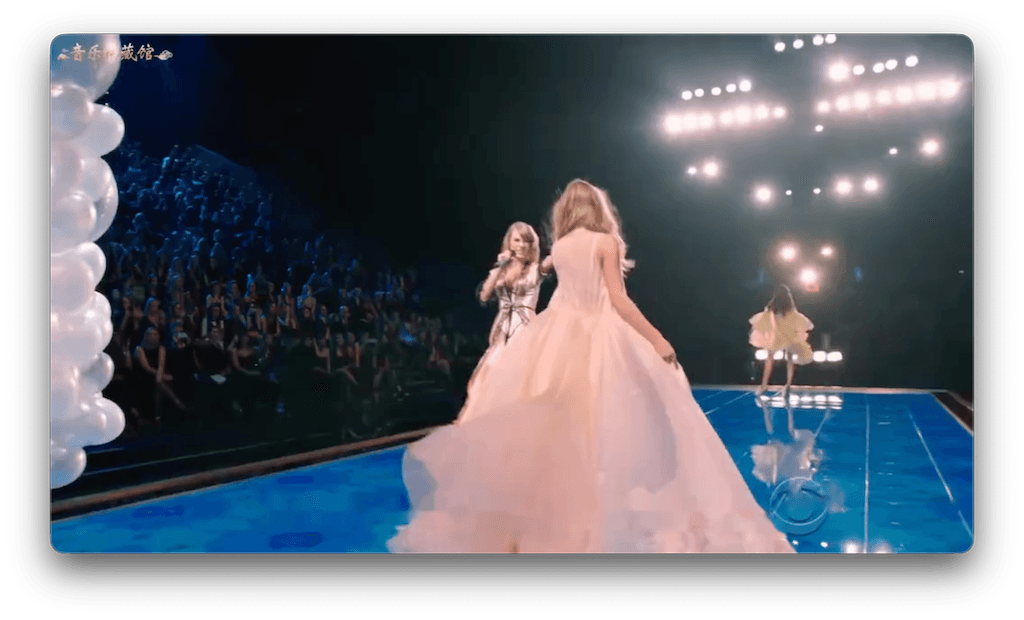 Before
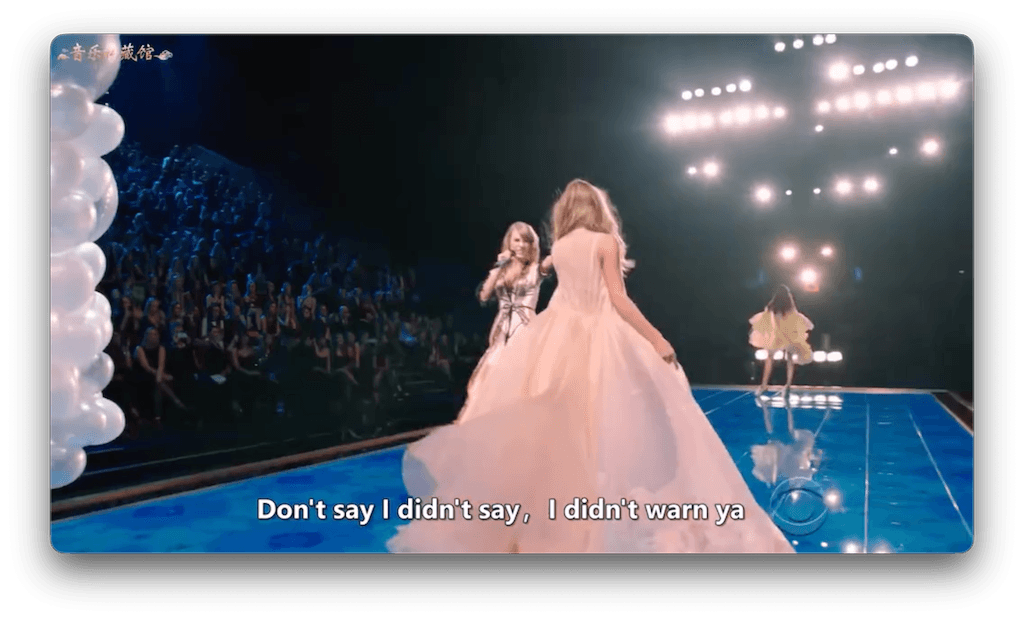 After AI Inpainting
Method 2: Manual Video Editing Software
A The Crop Method
You put the video in Premiere or Final Cut and scale it up or slice the bottom 20% off the screen where the subtitles live.
B The Gaussian Blur Method
You apply a heavy blur filter directly over a mast covering the text area to hide the words.
Method 3: Online vs Offline Tools
Online AI Removers
Browser-based tools exist, but for video editing, they suffer from massive bottlenecks: uploading a 4GB MKV file takes incredibly long, and there are severe privacy risks uploading unreleased content to unknown cloud servers.
Offline AI Tools (Winner)
EchoSubs AI champions the offline-first movement. You download the app, and it utilizes your local PC/Mac hardware. No uploads. No limits. 100% complete privacy for corporate and sensitive files.
Step-by-Step: Remove Hardcoded Subtitles with EchoSubs
Import Your Video
Launch the EchoSubs desktop app and drag your video (MP4, MKV, AVI, MOV) into the interface. Because it's offline, the import is literally instant.
Draw the Mask Frame
Use the bounding box tool to draw a rectangle exactly over the area where the subtitles appear. Pro tip: Keep the box as tight around the text height as possible so the AI has less area to reconstruct.
Click Process
Hit the start button. The AI will go frame-by-frame, detecting the pixels, wiping the text, and redrawing the background. Processing takes minutes depending on your hardware.
Tips for Best Results
- Use high-bitrate source files: Strongly compressed, heavily artifacted YouTube rips give the AI less data to work with. High-quality files result in cleaner reconstructions.
- Static backgrounds are perfect: If the text is hovering over a plain wall, sky, or static grass, the AI can perform near-magic removal.
- Avoid multi-line masking: If subtitles move up and down, size the box to fit the maximum stroke, but be aware reconstructing huge portions of the screen reduces quality.
Common Issues
Issue: The removal looks a bit muddy/wavy.
This happens on extremely complex backgrounds (e.g. someone walking rapidly directly behind the text). The AI does its best to guess the motion but might struggle. In these rare cases, manual touch-up is needed.
Issue: Only some subtitles were removed.
Ensure your mask box fully covers the highest and widest points the subtitles reach throughout the entire video sequence.
Frequently Asked Questions
What are hardcoded subtitles?
Hardcoded (burned-in) subtitles are text elements that have been embedded and rendered directly into the video frames during the final export. They act as actual image pixels, not a text layer.
Can hardcoded subtitles be removed?
Yes. While you cannot 'turn them off', advanced AI tools can remove them by reading the surrounding pixels and using generative inpainting to reconstruct the background.
What's the best hardcoded remover?
AI-powered, offline desktop applications like EchoSubs are currently the best. They offer the highest quality inpainting while ensuring complete data privacy since files are never uploaded.
Does AI work on all videos?
It works best on videos with clear, relatively simple backgrounds. For highly chaotic scenes with lots of motion directly under the text, the AI will try its best to reconstruct but may leave slight visual artifacts.
Is offline better than online?
For video editing, yes. Offline software prevents severe privacy risks (like uploading corporate or unreleased footage) and completely bypasses the 20-minute upload times associated with large video files.
What file formats are supported?
Leading tools support all standard video container formats, including MP4, MKV, AVI, MOV, and WebM.
How long does it take?
Since offline tools rely on your local processing hardware (CPU/GPU), a typical 10-minute video can have its subtitles removed in just a few minutes.
Can I remove subtitles from Netflix or streaming?
Most streaming services use 'soft' subtitles which can simply be toggled off in the player interface. You should only use rippers and removers on content you legally own or hold the rights to.
What's the quality difference?
EchoSubs delivers typically 85-90/100 visual quality. For simple static backgrounds, quality easily pushes into the 90%+ range. However, we never claim 100% perfect, invisible removal in all scenarios.
Do I need technical skills?
No. The EchoSubs interface is incredibly user-friendly. Import, drag a box over the text, and hit apply. No timeline coding or VFX background required.
What is the cost?
It costs just $5.99/month for unlimited, pristine subtitle removal processing locally.
Can I batch process?
Yes, our desktop software fully supports batch processing. You can load an entire season of MKV files into the queue and let the AI process them overnight.
Helpful Links