7 Best Burned Subtitle Removers
Removing "burnt-in" text is one of the hardest tasks in video editing because the original pixels behind the letters are permanently gone. In this guide, we reveal the 7 best AI erasers in 2026 that use generative inpainting to reconstruct your video, and why offline tools are beating cloud services.
What Are Burned-In Subtitles? (Hardcoded vs Soft)
Before choosing a tool, it's critical to know what type of text you are dealing with. If you don't actually have burnt text, you might not even need these tools.
Soft Subtitles (.srt, .vtt)
These are text files that sit alongside the video inside an MKV or MP4 container. Your media player renders them on top of the video in real-time. You can just turn these off in VLC or extract them instantly.
Burned-in (Hardcoded)
The text was rendered directly into the video frames before export. The background pixels no longer exist. You cannot simply hit an "off" button—you need an AI to synthetically guess what used to be behind the text.
How AI Removes Burned Subtitles
Historically, editors used simple Gaussian blur filters. They would draw a box over the text and blur it out, resulting in a horrible smudged rectangle playing across the bottom of the movie.
Modern 2026 tools utilize Generative AI Inpainting. The neural network acts as an eraser: it analyzes the surrounding frame (textures, colors, edges) and attempts to redraw the hole left by the removed text.
Quality Expectations: AI is not flawless magic. Typically, you can expect 85-90/100 visual quality. If the background is a simple static wall or clear sky, the AI can achieve 90%+ near-invisibility. No true editor will ever claim 100% perfect removal on complex, chaotic motion scenes.
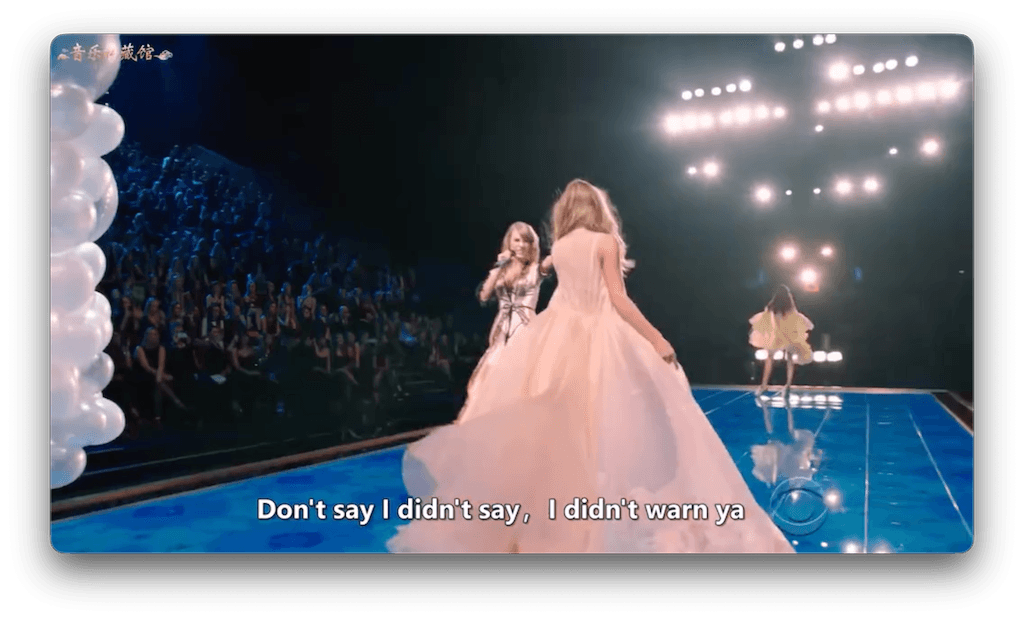
 Burned-in
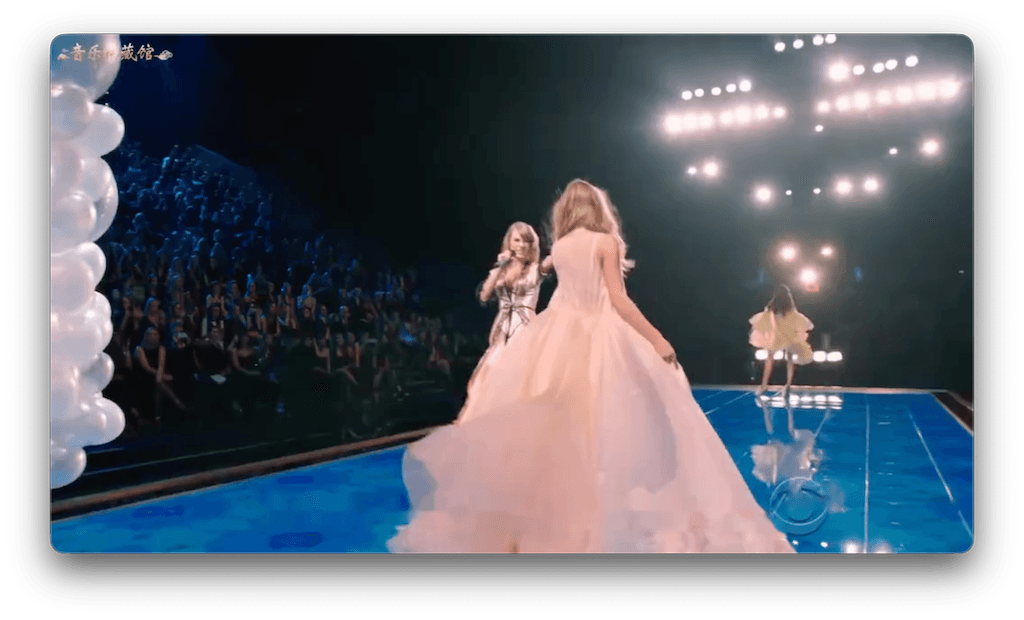
 AI Inpainting
The Top 7 Burned Subtitle Removers Ranked
EchoSubs AI Editor's Choice
Best overall for privacy, local rendering, and high-end inpainting.
EchoSubs distinguishes itself by being strictly an offline-first desktop application. It utilizes your local CPU or GPU, meaning you don't have to compress your 10GB video file into an annoying 500MB web upload. Extremely private and highly effective for data hoarders and corporate editors.
Pros
- • 100% offline (no upload required)
- • True generative inpainting AI
- • Extremely private processing
- • Batch processing capable
Cons
- • Software download required
- • Slower on very old hardware
Vmake AI
A strong web-based competitor that uses cloud servers to erase subtitles.
- + Easy browser access
- + Quick turnaround for very small files
- - Requires video upload
- - SaaS credit system can get expensive
Media.io
A popular online tool suite that includes a watermark and subtitle remover.
- + Friendly user interface
- + Cross-platform web support
- - Heavy limits on basic accounts
- - Privacy risks with sensitive footage
#4 AI Ease
Cloud-focused watermark remover. Struggles with heavy motion behind text compared to localized AI.
#5 BlurVideo.ai
Exactly as the name states. Relies heavily on blurring rather than true neural texture inpainting.
#6 VideoProc Converter
A decent desktop processor, but its hardcoded removal feature often leans towards crop/blur methods rather than generative AI.
#7 VideOCR (Advanced)
Not a strict remover. Analyzes hardcoded text using OCR to rip a soft subtitle file out, letting you recreate the text rather than erase the pixels.
Feature Comparison Matrix
| Tool | Platform | Tech Used | Privacy Layer |
|---|---|---|---|
| EchoSubs AI | Offline Mac/PC | True Gen-AI Inpainting | Ultimate (No Upload) |
| Vmake / AI Ease | Cloud Web UI | Cloud Inpainting | Requires Server Upload |
| BlurVideo.ai | Cloud Web UI | Basic Blurring | Requires Server Upload |
| VideoProc | Offline PC/Mac | Crop / Blur | Ultimate |
How to Choose Your Tool
If you value Privacy & Speed: Choose Desktop AI
Using EchoSubs ensures you never wait 40 minutes for an anime episode to upload to a browser. Everything computes locally on your graphics card.
If you want the highest quality: Demand Inpainting
Do not use tools like VideoProc or BlurVideo if quality matters. Blurring the bottom of your screen looks amateurish. True Gen-AI redraws the frame.
*Advanced Note: EchoSubs users can also use our online parameter advisor to dial in settings for highly complex scenes before processing offline.
Frequently Asked Questions
What is the best burned subtitle remover in 2026?
EchoSubs ranks #1 due to its offline-first processing infrastructure. It provides true generative inpainting quality (typically 85-90/100) without forcing users to upload massive video files to online servers.
How does AI inpainting compare to OCR for removing burned subtitles?
OCR (Optical Character Recognition) does not remove the pixels from the video; it just reads the burned-in text and converts it to a separate soft text file. AI inpainting actually erases the burnt text and reconstructs the image behind it.
Can I remove burned subtitles without uploading to online tools?
Yes. Offline applications (like EchoSubs Desktop) utilize your local hardware (Mac or PC) to process the AI models, offering extreme data privacy and avoiding arbitrary cloud upload limits.
What's the difference between burned-in and soft subtitles?
Soft subtitles are separate text tracks you can toggle on or off in your media player. Burned-in (hardcoded) subtitles are permanently baked into the video frames to replace the original image pixels.
Are basic online tools effective for removing hardcoded subtitles?
Most basic online tools simply apply a Gaussian blur to hide the text, resulting in a horrible smeared box on your video. Genuine AI inpainting requires heavy compute power, which cloud services usually gate behind expensive subscriptions.
What's the quality expectation for AI subtitle removal?
Expect an 85 to 90 out of 100 visual quality score. If the text is hovering over a very simple, static background, you can achieve 90%+ near-invisible removals. Do not expect 100% flawless results on chaotic scenes.
What formats do offline tools support?
Leading offline AI software typically supports MP4, MKV, AVI, MOV, WebM, and more without needed a pre-conversion.
Does AI handle animated / anime subtitles well?
Yes. In fact, because anime often features large areas of flat color shading, the generative AI often yields even cleaner repairs than on live-action cinematic footage.
Can I batch process multiple episodes?
Yes, desktop software excels at this. You can queue up an entire folder of MKV files to have the burned text erased overnight.
Is there an online AI parameter advisor?
Yes, advanced users of EchoSubs can optionally consult our online advisor tool to figure out the best tweaking parameters for difficult, high-motion scenes.
Do I have to mask the subtitles myself?
You provide a broad bounding box indicating where the subtitles appear in the frame. The AI then calculates the specific pixel edges inside that box.
Does the removal affect the audio track?
No. High-quality removers use passthrough for audio codecs. The audio track is completely untouched during the visual repair process.
Deep Dive Topics