How to Remove Subtitles from Video (2026 Complete Guide)
Whether you are trying to repurpose a video for social media, extract raw footage, or translate content, dealing with embedded text can be frustrating. This 2026 guide covers everything from instant AI subtitle removal to manual PC and mobile editing techniques.
1. Introduction: Why Remove Subtitles?
Removing subtitles has become a crucial workflow for creators in 2026. The reasons vary widely:
Localization
You want to add your own Spanish, French, or Japanese captions without them overlapping the original English hardcoded text.
Video Repurposing
Creating clean B-roll, extracting clips for YouTube Shorts, or formatting landscape videos for TikTok requires a clean canvas.
Distraction-Free
Aesthetically, large burned-in text blocks can ruin the visual composition of professional video presentations.
6. Hardcoded vs Soft Subtitles: What's the Difference?
Before choosing a removal method, you must identify your subtitle type.
Soft Subtitles (Closed Captions)
These are separate text files (.srt, .vtt) that play alongside the video stream. They can be toggled on and off by the video player.
Hardcoded Subtitles (Burned-in)
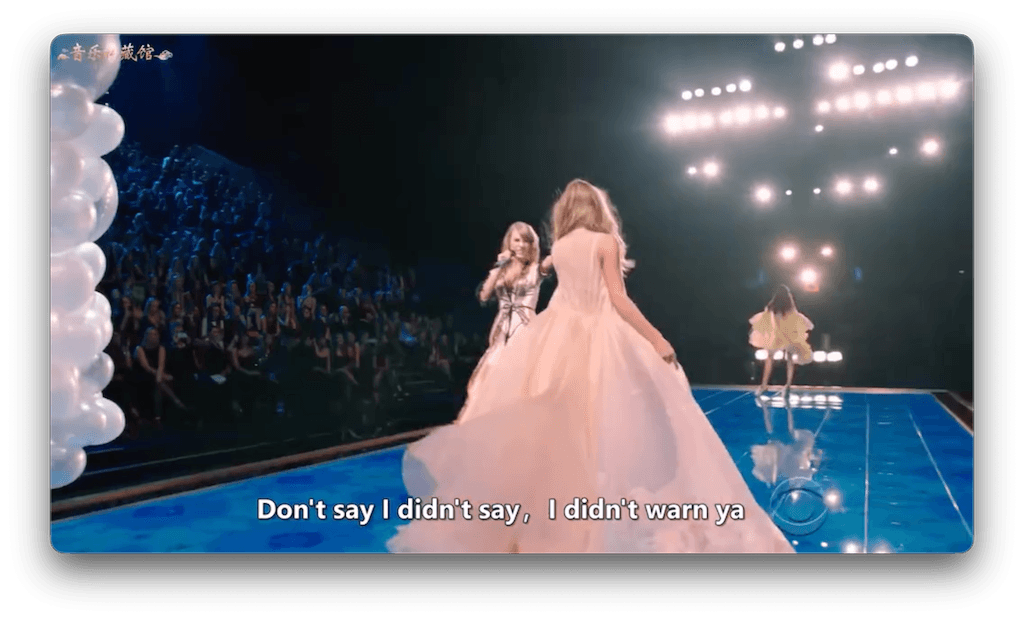
These subtitles have been permanently rendered into the video frames. The original pixels under the text are completely destroyed and gone forever.
2. AI Subtitle Removal (EchoSubs) - Offline & Fast
The 2026 Standard: AI Inpainting
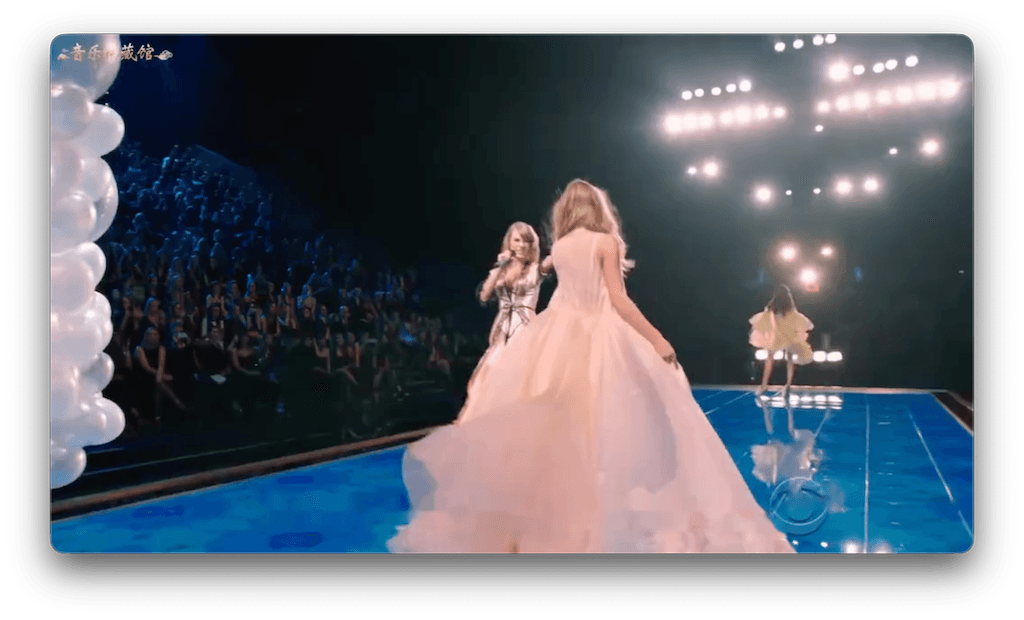
For hardcoded subtitles, the absolute best method is generative AI. EchoSubs AI uses offline neural networks to analyze the pixels surrounding the text and reconstruct the missing background.
Quality Expectation: Typically 85-90/100 visually. On simple backgrounds (like grass or walls), it can achieve 90%+ near-invisible removal. (Note: No tool can claim 100% perfect removal yet).
- 100% Offline Processing
No need to upload massive 10GB video files to a slow web server. Total privacy.
- GPU Accelerated
Utilizes your PC hardware to process frames faster than real-time.
3. How to Remove Subtitles on PC (Windows/Mac)
Desktop computers are the ideal environment for video editing because they have the GPU power to handle heavy AI inference.
- Download EchoSubs Desktop software. (Available for Windows and macOS).
- Import your MKV or MP4 files. If you have multiple episodes, drop the whole folder in. Batch processing is supported out of the box.
- Draw a mask box over the subtitle area at the bottom of the screen.
- Export. The local AI will dynamically redraw the background on every single frame without re-rendering the top portion of the video, saving massive amounts of time.
4. How to Remove Subtitles on Mobile (iOS/Android)
If you only have a smartphone, your options are mostly limited to simpler web tools or cropping apps.
- Use Web-based AI Tools. Open Safari or Chrome and navigate to online AI removers. However, be prepared for long upload times for large video files.
- The Cropping Method. Download an app like CapCut or InShot. Select the video and use the "Crop" tool to literally chop off the bottom 20% of the video where the subtitles live.
- The Sticker Method. In mobile apps, many creators simply add an opaque text box or a large emoji over the existing subtitles to cover them up before re-uploading to TikTok.
5. Manual Methods: Paint Over & Blur
The "Old School" Video Editing Way
Using Premiere Pro, Final Cut, or After Effects.
Gaussian Blur Box
The most common amateur method. You create an adjustment layer, crop it to the subtitle area, and apply a heavy blur. It "removes" the text but replaces it with an ugly, distracting blurry rectangle. Not recommended for professional viewing.
Content-Aware Fill
Using After Effects' Content-Aware Fill. You must painstakingly track a mask over the text. It yields high quality but requires deep technical skills, expensive Adobe subscriptions, and renders incredibly slowly (often hours for a short clip).
7. Best Practices for Clean Results
Keep the Mask Tight
Don't select half the screen. When drawing your removal box, make it sit as tightly around the text as possible. The less area the AI has to reconstruct, the better the final image looks.
Advanced Users: Adjust AI Parameters
For complex scenes (explosions, fast motion behind text), some desktop tools allow you to tweak the scene complexity. Setting it higher commands the AI to use more temporal frames to guess the background.
Check Your Quality Constraints
Review our video quality guide. Attempting to remove tiny hardcoded text from severely compressed, pixelated 480p videos will yield muddy results. High-bitrate 1080p+ source files provide the clearest AI reconstruction.
8. Conclusion: Choose the Right Method
Removing subtitles in 2026 doesn't have to mean ruining your video with a massive blur box or cropping out half the image. For professional, clean, and fast results, a localized offline AI inpainting tool is the superior choice.
Start Removing Subtitles TodayFrequently Asked Questions
Does AI really work for hardcoded subtitle removal?
Yes. Generative AI looks at surrounding pixels and adjacent frames to redraw the pixels covering the text. EchoSubs achieves 85-90% visual quality typically, and can effortlessly hit 90%+ on calm, simple backgrounds.
How to remove subtitles from video on PC?
Use an offline desktop software like EchoSubs AI. You simply import the video, draw a rectangular mask over the subtitles, and click process. Utilizing your local hardware ensures no long upload times.
How to remove subtitles on mobile?
While you can use web-based AI tools via a mobile browser, many creators prefer to load videos into apps like CapCut and crop the video to cut off the subtitle bar altogether.
What's the difference between hardcoded and soft subtitles?
Hardcoded text is 'burned' into the video's actual image data; if you pause the video, it's painted onto the frame. Soft subtitles are a separate text file that the player renders over the top on the fly.
Is AI better than manual editing?
AI is significantly faster and often yields better results than a basic manual blur. While a VFX artist spending 5 hours manually tracking and painting frames in After Effects might achieve slightly better edge precision in highly complex scenes, AI accomplishes 90% of the quality in minutes.
Does AI work on complex backgrounds?
Yes, though results vary. It handles static backgrounds seamlessly. With highly dynamic scenes (e.g., a person walking behind the text), the AI might slightly blur the reconstruction, but it still maintains typical 85%+ quality.
Can I remove subtitles without losing video quality?
Yes. By using AI inpainting, you only alter the specific bounding box where the text exists. The rest of your pristine 4K or 1080p video frame is completely untouched, preserving its original quality far better than standard cropping.
How long does subtitle removal take?
With hardware acceleration via a dedicated desktop GPU, an hour-long episode can often be processed in a matter of minutes. Older laptops will take longer.
Is offline AI safer than online tools?
Absolutely. With offline tools, your video never leaves your computer. There is zero risk of data leaks or privacy breaches, which is crucial for unreleased corporate or copyrighted content.
What file formats are supported?
Most modern tools, including EchoSubs, manage heavily requested video formats like MP4, MKV, AVI, MOV, and WebM smoothly.
Can I batch process multiple videos?
Yes, desktop software is built for batch capabilities. You can queue up dozens of localized clips and leave your computer to process them overnight.
What's the quality percentage AI can achieve?
We do not claim 100% perfect, invisible removal. You can expect 85-90/100 visually. If the background is a solid color wall, it can achieve 95%+.
Do I need technical skills?
No. EchoSubs is designed with a straightforward graphical interface. You just draw a box on the screen and hit apply—no coding or VFX knowledge required.
How much does it cost?
At just $5.99/month, it is highly affordable and delivers professional results without expensive agency fees.
Helpful Links